Dime Dime Baby AI: What Breaks When You Recast a Clip From One Photo
The Dime Dime Baby AI trend puts someone new into a short clip of a dance through a crowded wedding party. They stroll up to the camera, bite into some food with a grin, pause on the lens, then spin round and dance off. The hook means "tell me, tell me, baby" in Spanish. The song is BbY WOW, so the trend also goes by Baby Wow.
It makes a good test for recasting from one photo. A single photo holds very little, and this clip asks for the whole body, a close-up and the back, with party lights changing colour on top of all three.
I build aiMakeVideo, which sells a generator for this clip, so I am not neutral. I spent about a week rendering this single clip over and over, more than a dozen times, and reworked my tool more than once along the way. These are my notes on what failed. The photo findings and the checks should carry over to other one-photo tools, though mine is the only one I tested.
Check a photo first
This runs in your browser. The photo stays on your device and is not uploaded anywhere.
The file limits are the ones on my tool, and other tools differ. The other numbers are my rules of thumb, not tested limits, and a clean result does not promise a good render.
A script cannot judge the parts that matter most, so look for yourself: one person in the frame, head to toe with shoes visible, a clear face, and no sunglasses or low cap.
Four ways a tool can recast this clip
Tools can tackle it in several ways, and each one fails differently. I tried the last three while building mine.
| Approach | What you get | What goes wrong |
|---|---|---|
| Face swap | Your face on the original dancer | The dancer's clothes and body stay. I did not test this; it follows from the method. |
| Fill the dancer's outline | Your face, in the same room, with the same guests and moves | Whatever the photo does not show gets invented. I saw see-through trousers, a ragged hem, a hat nobody wore and shoes that changed mid-clip. A long robe shrank to the knee, and a dog photo produced an unrelated woman. |
| Rebuild the scene around the motion | Your own clothes, held well | It is a different party, with a new hall and new guests, sometimes the same guest twice. People know this trend by its room, so I dropped it. |
| Recast from the clip itself | Your face and clothes in the original room, with motion within about a frame of the original | If a person looks and dresses like the original dancer, you can get the original clip back, marked as finished. |
I ended up on a changed version of the last approach. The look-alike test person now keeps his own face. On this version I have four test renders of four different people, and in all of them the original dancer is gone and the room is intact. Four is a small number, so treat it as encouraging and no more.
You can often work out which approach a tool uses from its sample videos. Check three things:
- The clothes. If every sample wears the original dancer's outfit, it is a face swap.
- The people behind the dancer. If the hall and guests differ from the original clip at the same moment, the scene was rebuilt.
- What the input photo never showed. If the tool shows its input photos, compare the legs, the shoes and the back of the outfit with the render.
What the photo has to carry
One rule explains most of what I saw: whatever your photo leaves out, the AI has to make up. These are the inputs that made a difference.
- One person in the frame. Crop everyone else out. A person cut off at the edge of one photo probably explains a hat that appeared on an older version of my tool.
- Head to toe, shoes visible. A full-body photo gave me the real clothes and shoes, front and back. A waist-up photo leaves the legs and shoes to the AI.
- Close enough for a clear face. A full-body shot where the person is tiny carries the outfit and loses the face.
- No sunglasses or hats, unless they are the point. They never come off, and the peak of a low cap can darken the eyes when the camera moves in.
- Front-facing, in even light. Side angles make the likeness worse.
- Long clothes are fine, with a warning. Dresses, skirts and robes are the weak spot, so look at the hem afterwards.
It does not have to be a studio shot. One of my examples started from the simple photo below, with one person, a plain wall and nothing cut off:
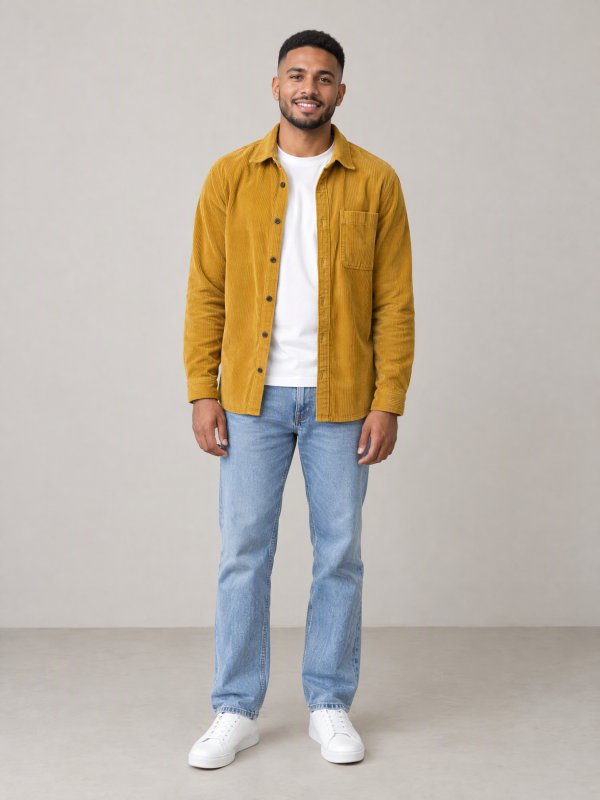
An AI-generated test photo. The man is not real.
Where to look in a render
A job that says finished can still be wrong. The clip runs 8 seconds, and with a person the moves and timing never change, so every render can be checked at the same moments:
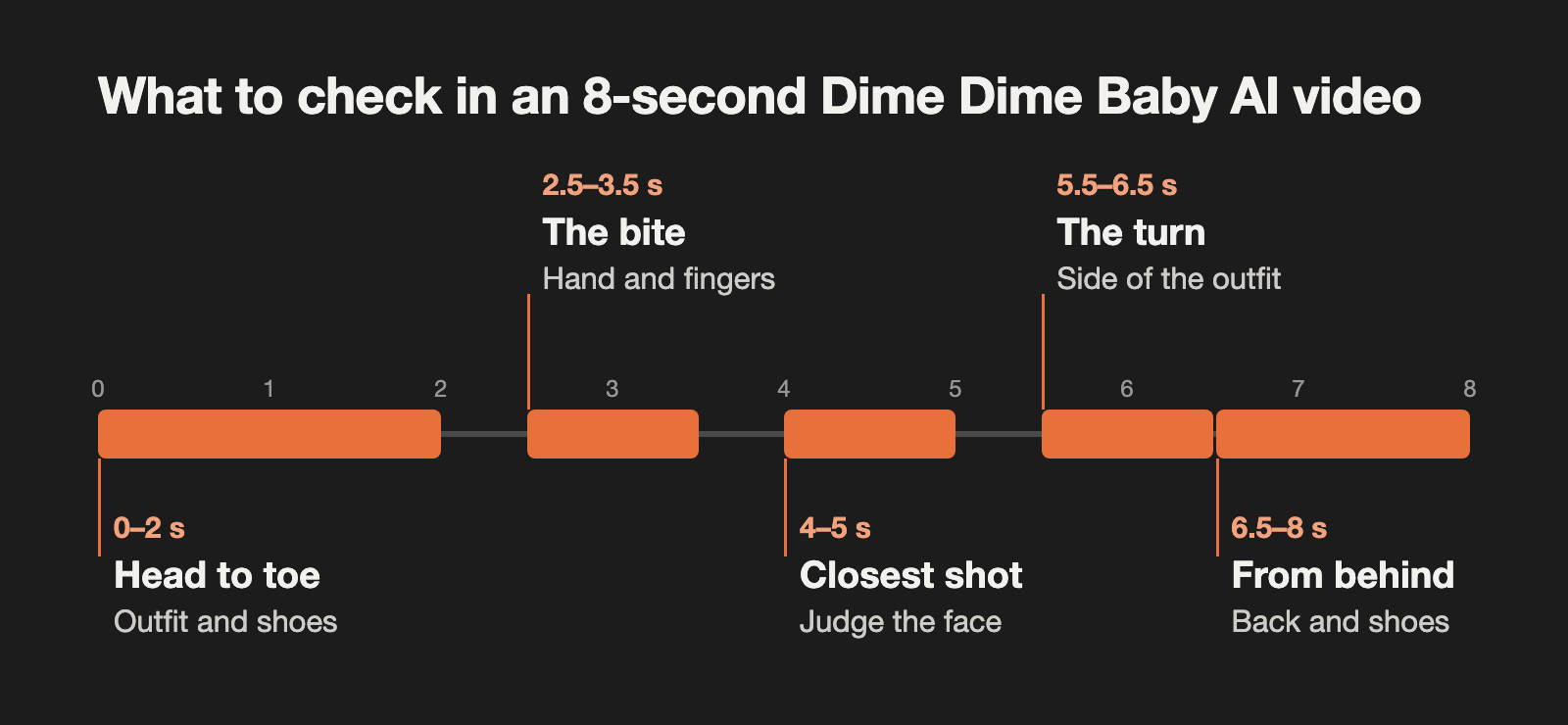
- 0 to 2 s, head to toe. Check the outfit and the shoes, and make sure the legs do not look see-through.
- 2.5 to 3.5 s, the bite. Look at the fingers, and see that the food actually gets to the mouth.
- 4 to 5 s, the closest shot. Hold this next to your photo. It is the moment to judge the likeness, and to catch the original dancer's face if the clip was handed back.
- 5.5 to 6.5 s, the turn. Look at how the outfit holds from the side.
- 6.5 to 8 s, from behind. Check the back of the outfit, and that the shoes match the first second.
Three things will look wrong and are fine:
- A wider smile than your photo has. The routine sets the expression, and hair may also look a little fuller.
- Clothes changing colour. Those are the party lights. Judge colour in a steady moment, because a shirt can wash out almost white for an instant near the end.
- No singing. Nobody lip-syncs in this clip, so the mouth only smiles and bites.
If something really is wrong, the fix is usually in the photo: a sharper, front-facing shot for the face, a full-body shot for the shoes and legs, or a tighter crop if something appeared that you were not wearing. A render that finishes but is clearly wrong, such as the original dancer still being there, is worth reporting to the tool's support.
Pets
A dog needs a different route from a person, one that gets it up on its hind legs for the whole routine. My tool preselects the route with a human-face check, and that check can misread a person too, for example a small face under a hat and sunglasses, so the choice stays open. Markings and accessories survived in the dog renders I went through. The weak spot is the underside: most pet photos do not show it, so the AI has to guess, and one render drifted in colour on the belly and front paws. Look closely there and between the hind legs before you post.
What I have not proven
- Waist-up photos on the current version of my tool. The previous version handled them well.
- A second person in the photo, since the hat problem above.
- People built very differently from the original dancer.
- Cats and cartoons. You can upload them, but every pet render I reviewed was a dog.
Consent and rights
- Use photos only of adults who agreed. Photos of public figures and of anyone under 18 are not allowed on my tool, and I would not use them anywhere.
- The song is someone else's property, and using a generator does not license it. Keep these as personal posts, with no commercial use.
- Switch on the AI label on TikTok, Instagram or YouTube.
- My tool is independent, with no tie to the song, its performers, the people in the original clip or TikTok.
The longer version, with more on each failure, is in my Dime Dime Baby AI test notes, and the example renders are on my generator page. If you have tried this clip on a different kind of tool, I would like to hear what broke for you.